Tooling: check, inspect, snap, dev and tests
The kinemo command closes the write → view → fix loop. Most of the time you do not need
to render a video to know whether a scene is right:
| Command | Answers |
|---|---|
kinemo check |
Does it build? Which errors and lints, with which fixes? What is on the timeline? |
kinemo inspect |
Where is each object at instant t, and why is it there? |
kinemo snap |
What does the frame look like at these instants? |
kinemo dev |
Live preview with hot reload and a draggable timeline |
kinemo explain / kinemo docs |
What does this code mean? How is this symbol used? |
kinemo upgrade |
Rewrite deprecated forms after a version change |
kinemo doctor |
What does kinemo find on this machine (ffmpeg, Python, extras)? |
kinemo.testing |
The same checks inside pytest, plus golden-frame snapshots |
The full option list is in the command line reference. This guide shows how to use the commands together, then covers determinism and performance.
Starting a project#
kinemo new demo        # demo/kinemo.toml, demo/scene.py, demo/pyrightconfig.json, .gitignore
cd demo && kinemo check scene.py && kinemo render scene.py
Video output needs ffmpeg. When it is missing, kinemo render says so with the install
command for your system (brew install ffmpeg, sudo apt install ffmpeg,
winget install Gyan.FFmpeg); kinemo doctor shows what kinemo finds (versions, ffmpeg,
optional extras, the project file), which is also what to paste into a bug report.
kinemo.toml holds the project defaults (size, fps, theme, lints, TTS provider). It is
looked up from the working directory upwards, so run kinemo from inside the project.
See Configuration.
Named presets live there too: a [presets.short] table (size = "vertical", tail = 1.0)
is chosen with @k.scene(preset="short"). For defaults kept in Python (a series library),
episode = k.scene_preset(tail=1.0) makes a decorator: @episode.
kinemo check#
check builds and resolves the scene without rendering, then runs the lints. It is fast
(about 0.2 to 0.3 s for a typical scene), so run it after every edit.
kinemo check scene.py                 # every scene in the file
kinemo check scene.py --scene intro   # one scene
kinemo check scene.py --strict        # warnings count as errors (use this in CI)
kinemo check scene.py --fix           # apply safe fixes, then check again
kinemo check scene.py --json          # machine-readable (see the AI agents guide)
The text report has a header, the timeline (each scheduled animation as it is written, with
its source line; a call that runs in a loop shows each run's objects, and repeated firings
are grouped as ×n), then errors and lints:
edge.py — scene 'edge' — 1.5 s — ok with 1 warning
timeline
   0.00– 1.00  k.write(title)                           edge.py:7
lints
  W1001 1.00 s  title leaves the safe area (top, 0.4 u)   :6
        fix: title = k.Text("A long title near the top", size=0.6).place(at="top", margin=0.1, clamp=True)
Errors carry the full anatomy: code, message, the offending line (and the related line, such as where a constraint was declared), the instant, and numbered fixes:
K0401 error: 'ax' cannot animate x: the axis is held by a constraint
  --> scene.py:10          s.play(ax.to(x=1))
  --> scene.py:6           ax = k.Axes(x=(-3, 3, 1), y=(0, 2, 1)).place(at="center")   ← constraint here
   t = 1.00 s
  fix 1: change the constraint with an animation
         s.play(ax.to_place(right_of=...))
  fix 2: release it and animate freely
         s.play(ax.to(x=..., unpin=True))
  more: kinemo explain K0401
Levels and exit codes:
- error stops the build. Exit code 1.
- warning (a lint) does not stop the build. Exit code 0, or 1 with
--strict. - hint is a style suggestion and never fails.
--fix applies the fix of every diagnostic that has exactly one safe, mechanical edit (a
whole-line replacement), then runs the check again. Fixes that need a decision (two
options, or a description without code) are left for you.
Silencing a lint#
Lints are turned off explicitly, never globally by accident:
title = k.Text("Overlaps on purpose").place(at="center") # kinemo: allow W1002or for the whole project, in kinemo.toml:
[lints]
allow = ["W1007"]
The comment goes on the line the lint points to (the :line in the report). A reason after
the codes is kept as written: # kinemo: allow W1003 (dimmed on purpose).
An allow that no longer silences anything (the lint got more precise, or the code moved) is
reported as W0120, so it can't hide a real problem on that line later; kinemo check --fix
removes it, keeping the other codes of the comment. Allows are judged in the checked file when
all of its scenes are built (not with --scene).
kinemo inspect#
inspect prints the scene graph at an instant: every object present, its position and
bounding box, and where the position comes from (a constraint, a container, or plain
x/y).
kinemo inspect scene.py --at 2.5        # seconds
kinemo inspect scene.py --at part2      # a mark name
kinemo inspect scene.py --at end        # the last frame
kinemo inspect scene.py --at 2.5 --json # every prop and its source (see the AI agents guide)
kinemo inspect scene.py --at 2.5 --all  # also objects not in the scene at that instant
kinemo inspect scene.py --at "0,B03+50%,end"  # several instants, one build
ball: circle moon.py:24
position = (0.00, -1.08) ← place(above=floor)
bbox = [-0.30, -1.38 → 0.30, -0.78]
fill = #4C9BE8Objects are labeled by their variable name (ball), by their place in a parent
(row[2], txt["never"]), or by kind and id (text#3). Pass name="..." to objects
created without an assignment to get a readable label.
The most useful instants are the end of each s.play, which you can read from the
timeline that check prints.
kinemo snap#
snap writes PNG frames of the requested instants (draft quality by default):
kinemo snap scene.py --at 0,2.5,end              # out/<scene>_0.png, out/<scene>_2.5.png, out/<scene>_end.png
kinemo snap scene.py --at 3 --quality final --out shots
kinemo snap scene.py --scene intro --at 3 --out shots/intro.png   # one scene, one instant: one file
kinemo snap scene.py --at "B03,B03+65%,B03.end-0.5"   # marks, shifted marks, a fraction of B03 → B03.end
kinemo snap scene.py --at marks --sheet               # every mark, as one labelled contact sheet
--at takes seconds, end, a mark name, a mark shifted by seconds (intro+1.5), or a
percentage of the stretch between a mark and the mark of the same name with .end
(B03+65%); marks stands for every mark in time order. --sheet writes one contact sheet
per scene (<scene>_sheet.png, --columns 3 by default) with each frame labelled, drawn by
kinemo itself.
kinemo dev#
kinemo dev scene.py                    # opens http://127.0.0.1:7878/
kinemo dev scene.py --scene intro --port 8000 --no-open
kinemo dev scene.py --debug layout,safe
The page has three panes: the outliner (every object as a tree), the frame, and the inspector, with the transport and the timeline below.
- The timeline shows each
play/startas a bar (verb and line; hovering shows the code) and the marks, named in a row under the ruler (marks at one instant share a label,B01.end · B02). Zero-length entries (s.add,k.sound,k.music) are ticks in a thin row of their own. Dragging it requests frames from the native server, so Python is not involved. Bars from one statement in a loop are grouped into one (group repeats; double-click a group to expand it). Ctrl/⌘ + wheel, or the−fit+buttons, zoom in on a stretch of time. The speed menu plays at 0.25× to 2×. Drag the edge above the transport to give the timeline more room (double-click it to fit the content again). - Narration (
s.voice) and sounds (k.sound) play with the scene, in sync with the playhead, at the playback speed. The speaker button (orM) mutes them; the choice is remembered. Lines without audio yet (the silent estimate) are silent. Music is mixed as in the video: it fades in and out and drops to itsducklevel while a voice speaks. - Under the animations, the Narration, Sounds and Music tracks show each clip
over the time it sounds; a line without audio yet is dashed. Clicking a narration line
shows its full text (click a word to move the playhead to it), its beat with a link to the
script, the audio file, where the word times come from, the warnings on its line
(
W1403,W1404, ...) and a button that plays just that line. - The Code tab (beside the inspector) shows the scene's code, read-only: the lines whose
statements are running at the playhead are lit (
play,start,wait,v.at, voice blocks,add/remove, marks), the one that started last is marked, and follow keeps it in view while playing or scrubbing (scrolling by hand turns it off). Selecting a timeline bar or an audio clip shows its line. Local modules with statements get their own tab. The gutter shows when each statement runs (1.20s,×3for a loop,◆ namefor a mark); clicking it moves the playhead there (to the next run, for a loop), and hovering lists the runs. - Breakpoints: click a line number in the Code tab. While playing, the preview pauses exactly
where a run of that statement starts and selects it (the inspector shows its arguments). In a
loop, a breakpoint can stop on one run only (
run 2 of 3). The list under the code enables, disables and removes them; they are remembered per browser and follow their line when the file changes (a breakpoint whose line is gone is shown crossed out). - Call stacks: a statement inside a
@k.clip, a component method or a helper function knows the lines that called it. The Code tab lights those callers too, the inspector of a bar lists them under Called from, and a breakpoint on a clip's line can stop for one call site only. - Script tab: a scene narrated from a
k.Scriptshows the script file as a tab of the Code view: the beat being narrated is lit, each beat's heading shows its time (click to go there) and its tooltip says whether its audio is recorded, stale or still estimated. - Code and canvas: names of objects in the code are links: hovering one draws its box on the frame (a list's name, all its elements), clicking selects it. Selecting an object marks the lines that made and animate it.
- Watch: ☆ next to a prop in the inspector pins it to the Watch list of the Code tab, which shows its value at the playhead while playing, stepping or scrubbing (flashing when it changes) and, for numbers, a sparkline over the whole scene. Watches are remembered per browser by object label.
- Stepping: F10 (or ⤓) moves the playhead to the next statement run, Shift+F10 (⤒) to the previous one; click a line of code and press F8 (⇥) to play until that line next runs.
- Saving the file (or a local module it imports) rebuilds the scene, and the preview stays at the same instant.
- Clicking an object, on the frame or in the outliner, shows its props and where each one came from: a link to the line that wrote it, or default for a prop the scene never set. The selection box and the props follow the object while the scene plays.
- Clicking a timeline bar selects the objects it animates and shows the arguments of its
call (
box.to(rotate=30)) and of theplaythat scheduled it (duration=,ease=). - Source links (and Ctrl/⌘ + click on a bar) open the line in the editor of
[editor] commandin kinemo.toml:vscode(the default),cursor,zed,idea,pycharm,sublimeand others open by URL; any other value is a commandkinemo devruns, with{file}and{line}replaced (command = "emacsclient -n +{line} {file}"). - If the build fails, the preview keeps the last good version and shows the error as an overlay.
--debug layoutdraws object boxes and constraint relations;--debug safedraws the safe area.- After a build, once you pause for a second,
devbuilds the scene a second time in the background and warns if the two results differ (see Determinism). The preview never waits for it, and a newer save cancels the pending check.
Editing from the preview#
Values the code wrote as literals (numbers, strings, booleans, (x, y) tuples, colors)
are editable in the inspector, underlined. The edit is written to the source file, changing
only those characters, and the scene rebuilds:
- Drag a number sideways to change it (Shift: 10× faster, Alt: 10× finer). While you drag, the scene rebuilds from the edited text without touching the file; the file is written once, on release. Esc cancels the drag.
- Click a number or a string to type a new value (Enter saves, Esc cancels).
- Ctrl/⌘+Z undoes the latest edit made from the preview (the file goes back exactly as it was) and Shift+Ctrl/⌘+Z redoes it. An undo is refused when the file changed in your editor since that edit.
- Each value gets an editor for its type, read from the API's annotations:
- enumerations (
align=,at="top", a brace'sdirection=) are a select;at=also offers point (x, y), which writes the current position as a tuple; - points (
at=(1, 2),anchor=,position=) are two numbers, each dragged or typed on its own; - colors open a popover with kinemo's palette (written as
k.RED), the theme's colors (k.theme.accent) and a color picker or hex field (written as"#rrggbb"); - easings are a select of the
k.easecurves (written ask.ease.out_back); - fractions (
opacity=) stay between 0 and 1 while dragged.
- enumerations (
- A prop marked default can be set too: the preview adds the keyword to the constructor
(
k.Text("hi", size=0.5)→k.Text("hi", size=0.5, rotate=8)). In a timeline bar's panel, the optional parameters a call leaves out (duration=,ease=,delay=) are listed with their default and added when edited. - Drag the selected object on the frame, or edit its position (two numbers), to move it.
This rewrites
place(at=(x, y)), or thex/yliterals that position it; dragging snaps to 0.01 units.
Values the code computes
A value the code computes stays an expression: the preview edits the numbers written inside it, never the expression itself.
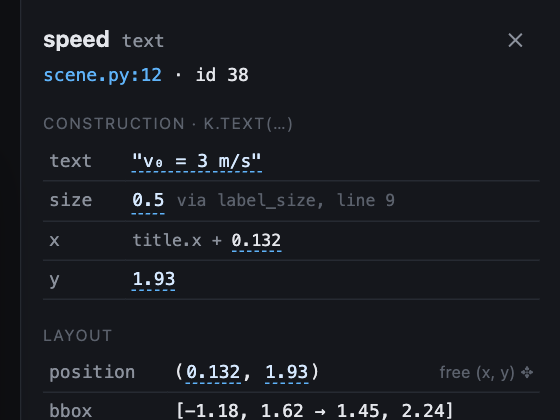
- Numbers inside an expression or a lambda are underlined in its code and edited like any
number:
x=title.x + 1.2,ax.plot(lambda x: 3 * x - 0.75 * x**2)(drag a coefficient and the curve follows). An integer stays an integer (x**2drags tox**3). Numbers in an f-string's format spec (:.1f) are not offered. - A value held by a variable (
gap = 0.4…place(gap=gap)) is edited where it is assigned, with via gap, line 6 beside it, and used N× when other lines read it too. This works for a name assigned once to a literal in the scene function, or at module level (ACCENT = k.YELLOW); names assigned more than once, parameters and loop variables stay read-only. - Dragging an object whose position is computed moves the number its position adds:
x=title.x + 1.2becomesx=title.x + 0.8,place(at=(left + 0.5, top - 1))changes0.5and1. A position with no such number (place(above=...), a container,title.x * 2) is not dragged, and the inspector says why.
Values are edited where the code wrote them; new statements come only from the editor's own
actions (see Building a scene from the editor). A line that
runs several times, as in a loop, carries a ×N mark, and editing it changes every run. If
the file was changed elsewhere since the last build (unsaved edits in your editor, for
example), the preview refuses the edit and reloads.
Building a scene from the editor
The preview also writes new code, so a scene can be built without leaving it. Every action is one small edit to the scene function, as you would write it, and Ctrl/⌘+Z undoes it.
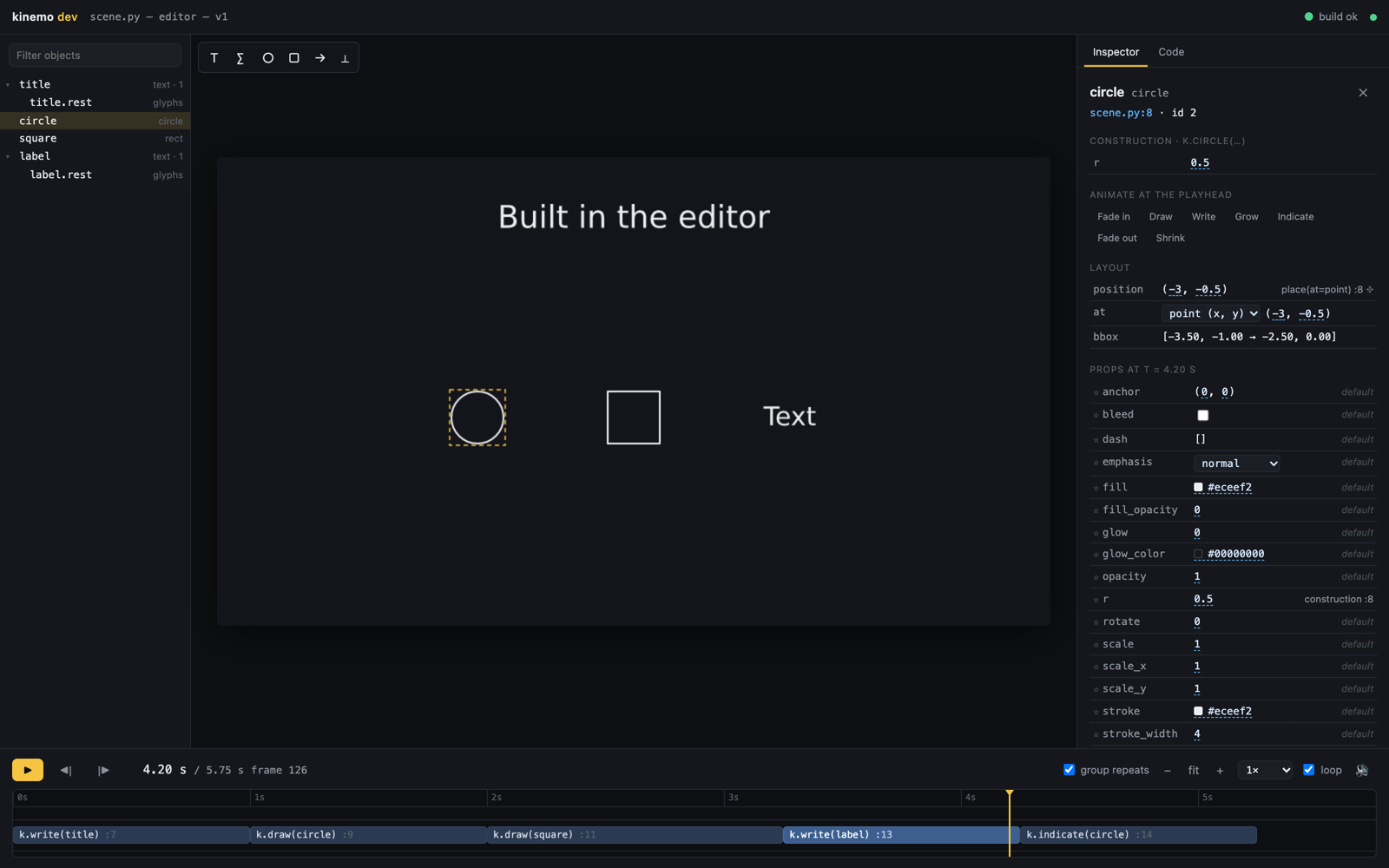
-
Add an object: pick one in the palette above the frame (text, math, circle, square, arrow, axes) and click the frame where it goes. The preview writes it, with a fresh name, placed where you clicked, and its entrance, after the statement at the playhead:
circle = k.Circle(r=0.5).place(at=(-3, -0.5)) s.play(k.draw(circle)) -
Animate it: with an object selected, Animate at the playhead adds
s.play(k.indicate(circle))(or fade in, draw, write, grow, fade out, shrink) after the statement at the playhead. Objects that are not a variable of the scene (a part, an object made in a loop) are animated in the code; the playhead must be past the line that makes the object. -
Time it on the timeline: drag a bar's right edge to change its
duration=, drag the bar sideways to start it later or earlier (thes.wait(...)before it changes, or one is added), and use ↑ Earlier / ↓ Later in its panel to swap it with the statement next to it, unless one needs the other. -
Adjust it in the inspector, as any value: the text, the size, the position, the color.
The editor writes only into the scene function and refuses, with the reason, where one line would stand for many (inside a loop) or for other code (a clip or helper defined inside the scene). Renaming, deleting and grouping objects are done in the code for now.
From a warning to the fix
Lints and edits work together. Here a label placed by hand overlaps the title:
speed = k.Text("v₀ = 3 m/s", size=0.4, x=1.2, y=3.3)-
The build reports
W1002 text over textat 2.00 s in the inspector's diagnostics (and in the header: 1 warning).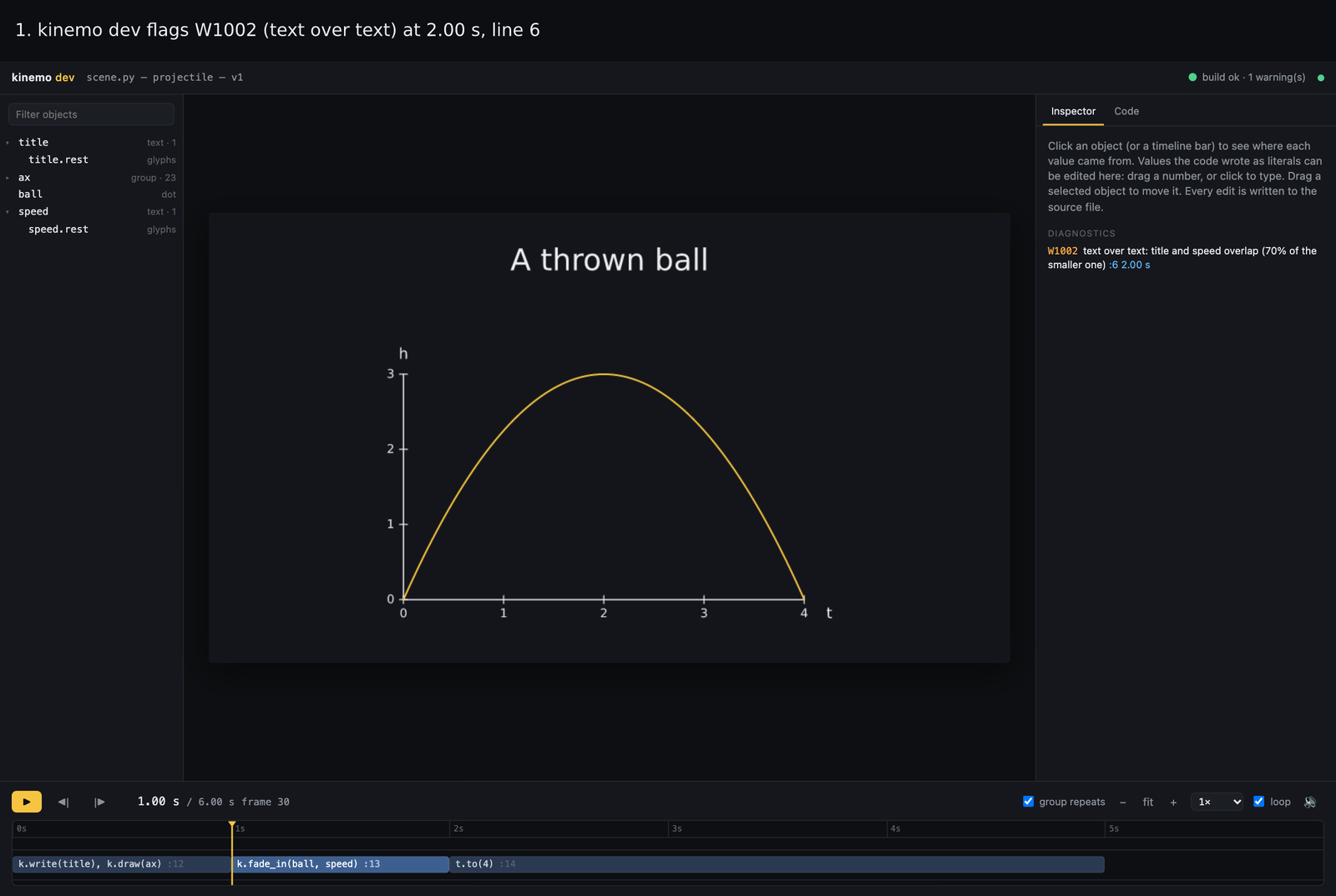
-
Clicking 2.00 s moves the playhead to the frame where it happens. Selecting the label shows
y=3.3as an editable literal.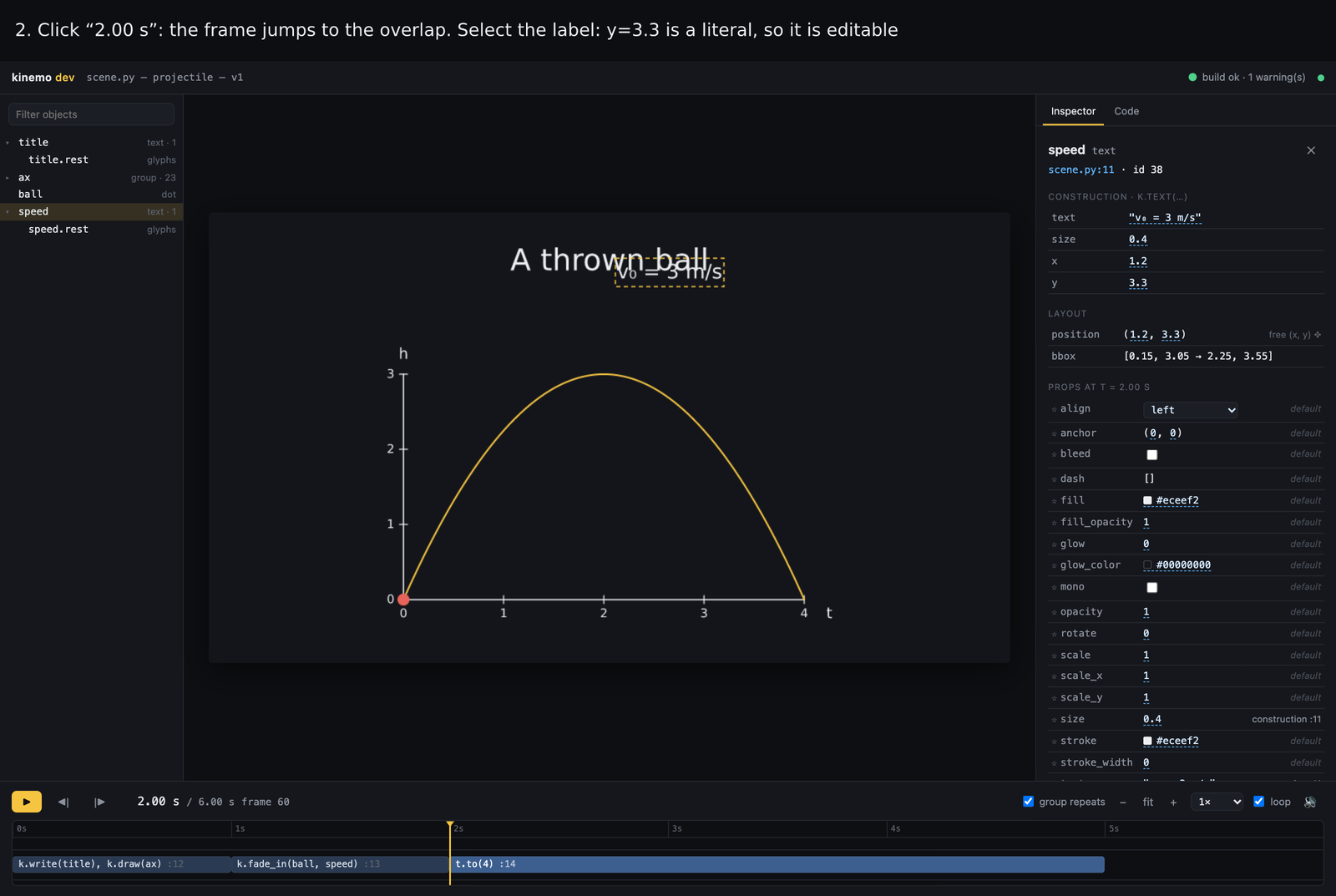
-
Typing
2.4writesy=2.4to the file; the scene rebuilds and the warning is gone.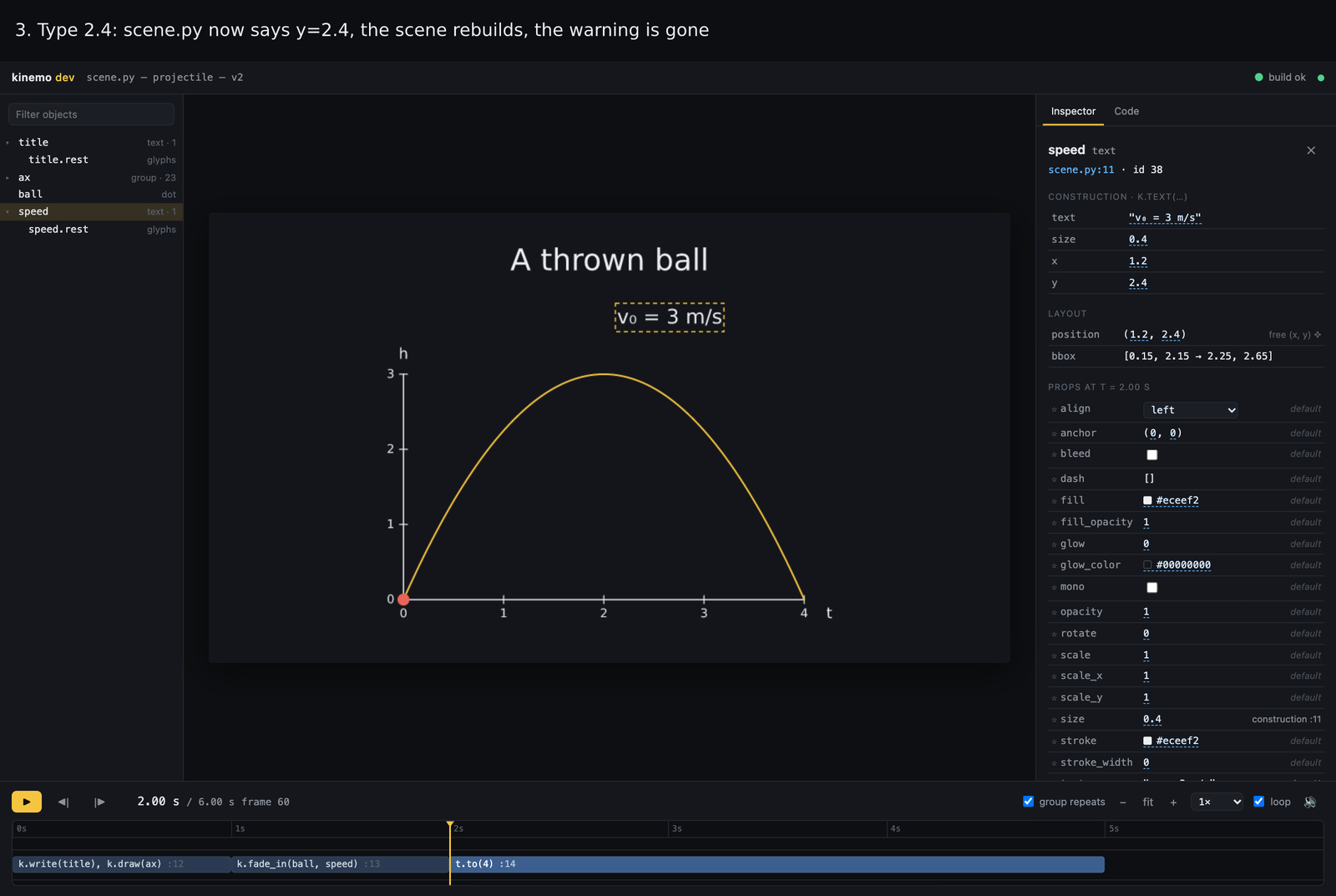
-
The fix the warning suggests,
.place(below=title, gap=0.3), keeps the label under the title for good. Its position is then computed: it is shown with where it comes from, andgap=0.3stays editable.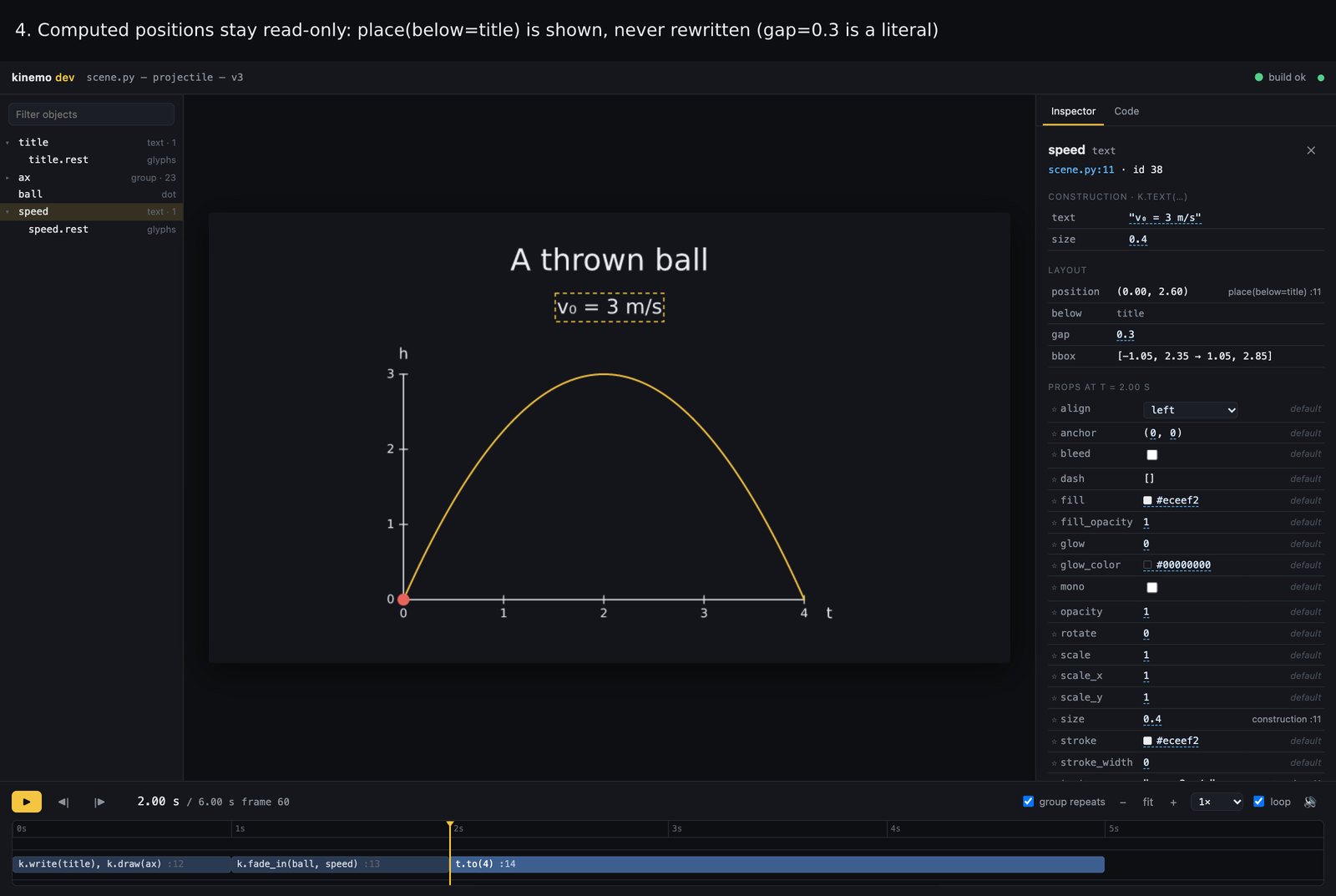
dev previews at draft quality. A wheel built with maturin develop --features gpu
rasterizes the preview on the GPU when an adapter is available. The final render always uses
the CPU renderer, which is the reference.
kinemo explain and kinemo docs#
kinemo explain K0401        # what a diagnostic means (some codes add an example and the fix)
kinemo docs k.morph         # signature, summary and the canonical example
kinemo docs ax.plot         # methods work too (also s.play, Scene.play, draw)
kinemo docs k.morph --json  # the same, as JSON
kinemo docs                 # the list of documented symbols
An unknown symbol suggests the closest names (kinemo docs k.morp → k.morph, ...).
Every canonical example passes kinemo check --strict, and kinemo docs --check builds them
all, which is a quick way to validate an installation.
kinemo upgrade#
Between versions, deprecated forms are rewritten by exact codemods:
kinemo upgrade --check scenes/*.py   # show the diff, write nothing (exit 1 if anything would change)
kinemo upgrade scenes/*.py           # rewrite in place
Each codemod changes only the deprecated call and keeps the rest of the file byte for byte.
In 1.0 there are two: k.Line(width=) → k.Line(length=), and a k.Text(...) used as a
scene parameter → k.Str(...).
Testing scenes with pytest#
kinemo.testing runs the same build, inspection and snapshot logic as the CLI, without
rendering video.
| Function | Does |
|---|---|
build(scene, params=None, *, strict=False) |
Builds the scene. Raises SceneBuildError (an AssertionError) with the rendered diagnostics on errors, or on warnings with strict=True. Returns a BuiltScene. |
inspect(scene_or_built, t) |
The kinemo inspect --json payload at t (seconds, a mark or "end"), with .object(label) and report["label"] lookups. |
assert_snapshot(scene_or_built, t, name=None) |
Compares the frame at t with a golden PNG in __snapshots__/ next to the test. |
BuiltScene has .duration, .marks, .timeline (the entries of check --json),
.diagnostics, .lint_codes and .report(). build also accepts a plain
def body(s: k.Scene) function, which is handy for small cases inside a test.
A scene module:
import kinemo as k


@k.scene
def hello(s: k.Scene):
    title = k.Text("Hello, kinemo").place(at="center")
    s.play(k.write(title))
    s.play(title.to(color=k.BLUE, scale=1.5))
    s.wait(1)


@k.scene(params={"n": k.Int(3, 12, default=5)})
def polygon(s: k.Scene, n: k.Signal[int]):
    shape = k.Polygon.regular(n, r=2, name="shape").place(at="center")
    s.play(k.draw(shape))
And its tests:
import pytest

import kinemo as k
from kinemo.testing import SceneBuildError, assert_snapshot, build, inspect

from scenes import hello, polygon


def test_hello_builds_cleanly():
    built = build(hello, strict=True)
    assert built.duration == pytest.approx(3.5)
    assert [e["label"] for e in built.timeline] == ["write(title)", "title.to(fill, scale)"]
    assert built.lint_codes == []


def test_title_ends_centered():
    title = inspect(hello, "end").object("title")
    assert title["position"] == pytest.approx([0.0, 0.0])


def test_polygon_with_a_parameter():
    built = build(polygon, params={"n": 8})
    assert inspect(built, "end")["shape"]["present"]


def test_hello_frame():
    assert_snapshot(hello, 2.0)


def test_animating_before_entering_is_k0101():
    def body(s: k.Scene) -> None:
        c = k.Circle()
        s.play(c.to(x=1))

    with pytest.raises(SceneBuildError) as info:
        build(body)
    assert info.value.diagnostics[0].code == "K0101"
How snapshots work:
- The first run writes the golden file (
__snapshots__/test_hello_frame-hello-2.0.png) and passes. Commit it. - Later runs compare byte for byte. On a mismatch, the new frame is saved beside the golden
one as
.actual.png, and the assertion message gives both paths. - After an intended change, rerun with
KINEMO_UPDATE_SNAPSHOTS=1to rewrite the golden files.
.timeline lists the scheduled animations; plain s.wait pauses are not entries.
Determinism#
The same source, the same assets and the same kinemo version produce the same bytes. Caching, parallel rendering and byte-for-byte snapshots depend on it:
randomandnumpy.randomare seeded for each scene before the build (@k.scene(seed=0)by default). Unseeded randomness gives the same result every time.- Simulations use a fixed step, and integrals and event detection use the same sampling grid on every machine.
- Text uses bundled fonts, never system fonts.
- The CPU renderer (tiny-skia) is the reference for snapshots. Video is encoded with bit-exact settings.
What kinemo cannot guarantee is that your code is pure. Handlers, .map functions and
k.python functions must not read the clock, global counters or files that change. kinemo dev warns when two consecutive builds differ:
kinemo dev: warning — two consecutive builds of the same source gave different results; ...Performance tips#
- Prefer
kfunctions tok.python. Expressions built withk.sin,k.where,k.interpare traced and evaluated natively, in parallel.k.python(fn)is called once per frame during resolve. Use it only for code that cannot be expressed natively, and prefervectorized=True, which receives the whole timeline as one numpy array. - Use mass objects for many points. One
k.Pointswith 10,000 points is far cheaper than 10,000k.Dot(lintW0901). See Mass objects. - Keep reactive text coarse. Text layout is redone only when the string changes; a
label formatted with
:.0fchanges less often than one with:.4f. - Iterate with
checkandsnap, notrender. When you do render,--quality draftis much faster thanfinal. - Keep handlers short. Every handler may run on several resolve passes. Logic that does not depend on the event belongs in the build.
- Size simulations sensibly.
dt=1/240(the default) is plenty for most motion; a smaller step multiplies the Python work ofk.simulate.
Common mistakes#
Diagnostic What happened Fix exit code 1 in CI check --strictturns every warning into a failure.Fix the lint, or allow it explicitly on its line ( # kinemo: allow W1002).lint still reported [lints] allowinkinemo.tomlignored, becausekinemoran outside the project folder.Run from the project folder (the file is found from the working directory upwards). K0001A plain Python exception (including a syntax error) while loading or building. Read the message. For syntax errors, the reported location may point inside Python's import machinery rather than your file. SceneBuildErrorkinemo.testing.buildfailed; the message is the same textcheckprints.Fix the diagnostics, or pass strict=Falseto tolerate warnings.SnapshotMismatchThe frame changed. Open the .actual.png; if the change is intended, rerun withKINEMO_UPDATE_SNAPSHOTS=1.KeyErrorininspect(...).object("x")No object with that label at that instant. The message lists the available labels. Check the instant, or name the object with name="x".devwarningTwo builds differ: a handler or traced function is not pure. Remove clock, global state and unseeded randomness from handlers and k.pythonfunctions.
See also: Command line reference, Diagnostics, AI agents.